 ByteFlares
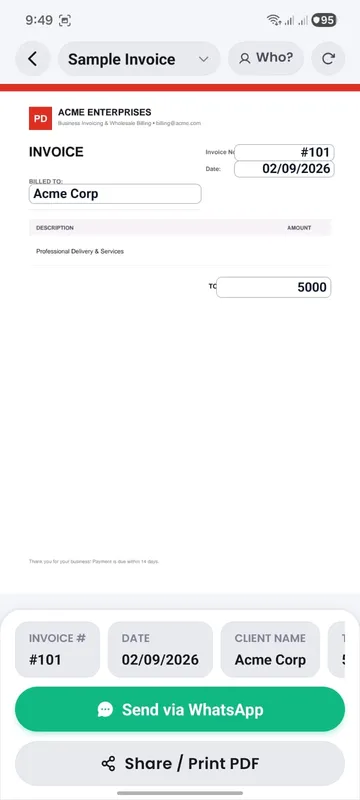
You already have an invoice design or company letterhead as a digital PDF. You want to prepare another bill on your phone, keep the familiar layout and send a PDF to the customer. This guide explains that workflow in Edit Invoice, Quote & Bill PDF by ByteFlares.
1. Start with a compatible digital PDF
1. Start with a compatible digital PDFKeep a copy of the original document. Use a digital PDF exported from the tool where your invoice or letterhead was designed. Scanned paper photos, password-protected files and restricted documents are outside the supported editing workflow.
Open the PDF on your Android phone in the app. If the original text or layout does not display correctly, try a fresh digital export before entering customer information. Read the PDF compatibility guidance if you need help.
2. Set up the information you reuse
2. Set up the information you reuseIdentify the fields that change between bills, such as customer name, date, amount and invoice number. Set the editable areas on your existing PDF layout. Review placement and text size so the new values fit.
This preparation is useful when you reuse the same letterhead. It does not guarantee that every PDF font or structure can be edited without adjustment.
3. Prepare a sample bill and review every value
3. Prepare a sample bill and review every valueFor a worked example, imagine an invoice for customer Sample Customer, document number 104, and amount 12,500 in the currency used on your document. Enter the customer, date, amount and document number in the corresponding fields.
Compare the PDF against those intended values. Check the currency label, decimal places, document number and customer name. Confirm that the new text fits the intended areas and that old values do not remain visible. Do this check before sending a real invoice.
4. Add a stamp or signature if needed
4. Add a stamp or signature if neededIf your workflow requires it, place a company stamp or signature using the app’s available tools. A stamp or payment status is a document record; it does not collect a payment. Mark a bill paid only after confirming the payment separately.
5. Export and share through WhatsApp
5. Export and share through WhatsAppReview the exported PDF. Use the sharing action and choose WhatsApp from the available Android sharing options. Select the correct customer conversation, check the attachment and message, then send it in WhatsApp.
WhatsApp message delivery needs internet. If WhatsApp is not available in the sharing options, export the PDF to your phone and attach it from WhatsApp. See sharing recovery steps.
6. Keep a copy and understand backup
6. Keep a copy and understand backupLocal PDF work can be done offline and does not require an account. Keep your important exported documents somewhere you can find them again.
Optional cloud backup needs Google sign-in and an internet connection. It uses the ByteFlares Cloudflare service and has file limits. Read the backup and restore instructions, and check restored files before removing copies from an old phone.
When the result is different from what you expected
When the result is different from what you expectedKeep the original PDF and the unsent result. Note the field you changed, the value you entered, what appeared instead and your app version. Contact app support with those details. Avoid sending confidential customer documents in your first message.